
Product
PRYSPROVE PRODUCTION SCHEDULER
A schedule isn't good because it looks neat. It's good because it tells you which deadline is at risk — and why.
PRYSPROVE PRODUCTION SCHEDULER
A schedule isn't good because it looks neat. It's good because it tells you which deadline is at risk — and why.
A browser-based production scheduler for metal parts manufacturing. It breaks projects down into operations, assigns them to work centres, and schedules them against your working calendar, shift pattern and public holidays.
One item runs on a work centre at a time, and prerequisite order is fixed. When something changes on the shop floor, the system recalculates the plan.
1. Parallel projects in a single view
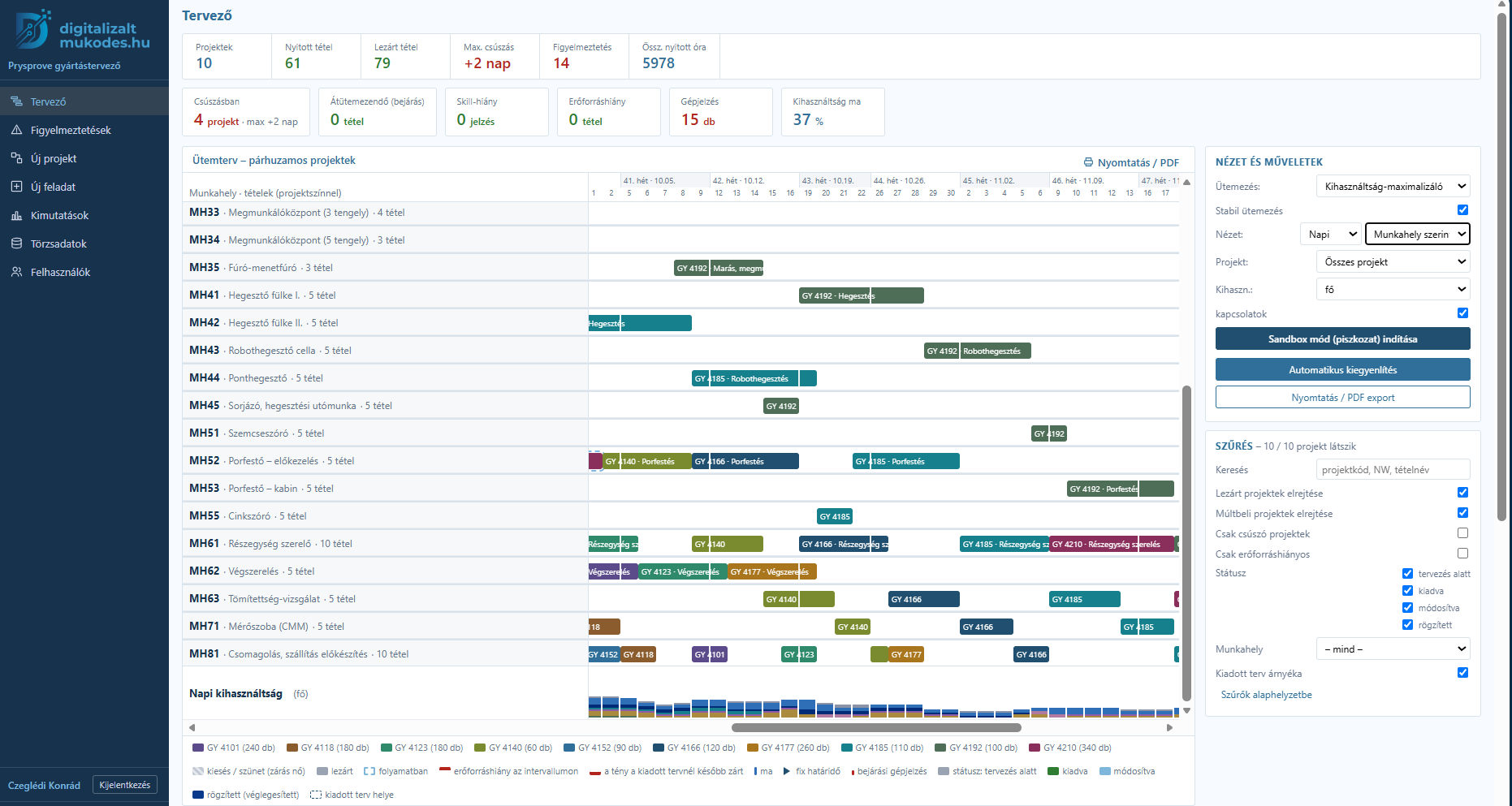
Every project starts with its own header: project code, status, due date, and how many days it's running late or how much float it has left. Below it, the operations with work centre, headcount and hours; the lines connecting the bars are prerequisites. Daily columns along the bottom of the Gantt show how many people the plan commits on any given day.
2. New projects from a process template
The 14-stage template — from laser cutting through to packing — drops onto the canvas as cards. Before the project is created, a trial schedule runs: you see the expected start and finish, and whether the work centre is already booked in that window. Give it either a start date or a fixed deadline; it schedules forward from the first, backward from the second.
3. Bottlenecks by work centre
The same plan can be viewed by work centre. This is the fastest way to see where items are stacking up and where capacity is sitting idle. Daily, weekly and monthly resolution, filterable by project, work centre, status — or down to just the projects that are slipping.
4. Changes run as a preview first
Drag a bar and the change runs as a preview before it commits. The system tells you which items move and by how many working days, whether it creates a new resource overload, and offers the three nearest start dates that wouldn't. A change that breaks a deadline can't be accepted. In sandbox mode, the live plan only changes when you commit.
5. Tracking what actually happened
When a plan is released, the system records the dates as they stood. That becomes the baseline — and it stays visible on the Gantt as a dashed shadow even after the plan has moved on.
Actual start and finish go on the item card. The scheduler doesn't recalculate recorded actuals, so changing a deadline won't rearrange work that's already done.
The Delays report shows, project by project, which operations are behind the baseline and why: a late prerequisite, a booked work centre, a manual shift, a resource shortfall, a shortage logged on the floor. Every change goes into the movement log.
Where production efficiency improves
Conflicts surface at planning time — not on the shop floor. One item per work centre, and bookings are visible in the plan.
Capacity is visible in advance. The system compares demand against A and B shift headcount, daily and by trade. If an item is short of people, the bar flags it before the day starts.
Targeted reallocation. The reallocation window lists workers in the trade you need and shows who's free based on their own work centre's load that day. The move is logged into the plan.
Less reshuffling. With stable scheduling, moving one project only shifts the items that genuinely conflict — every other project stays where it is.
Automatic levelling. Redistributes items by deadline, lowest float or most remaining hours, with Saturday working or a four-week third shift if you want them. Before you apply it, you see the before-and-after slip for each project.
Measurable utilisation. Six reports: utilisation, headcount, skill coverage, machine faults and project status — so you can see where capacity is standing idle and where the bottleneck is.
Book a 20-minute walkthrough — applied to your own production process, not a slide deck.
A schedule isn't good because it looks neat. It's good because it tells you which deadline is at risk — and why.
A browser-based production scheduler for metal parts manufacturing. It breaks projects down into operations, assigns them to work centres, and schedules them against your working calendar, shift pattern and public holidays.
One item runs on a work centre at a time, and prerequisite order is fixed. When something changes on the shop floor, the system recalculates the plan.
1. Parallel projects in a single view
Every project starts with its own header: project code, status, due date, and how many days it's running late or how much float it has left. Below it, the operations with work centre, headcount and hours; the lines connecting the bars are prerequisites. Daily columns along the bottom of the Gantt show how many people the plan commits on any given day.
2. New projects from a process template
The 14-stage template — from laser cutting through to packing — drops onto the canvas as cards. Before the project is created, a trial schedule runs: you see the expected start and finish, and whether the work centre is already booked in that window. Give it either a start date or a fixed deadline; it schedules forward from the first, backward from the second.
3. Bottlenecks by work centre
The same plan can be viewed by work centre. This is the fastest way to see where items are stacking up and where capacity is sitting idle. Daily, weekly and monthly resolution, filterable by project, work centre, status — or down to just the projects that are slipping.
4. Changes run as a preview first
Drag a bar and the change runs as a preview before it commits. The system tells you which items move and by how many working days, whether it creates a new resource overload, and offers the three nearest start dates that wouldn't. A change that breaks a deadline can't be accepted. In sandbox mode, the live plan only changes when you commit.
5. Tracking what actually happened
When a plan is released, the system records the dates as they stood. That becomes the baseline — and it stays visible on the Gantt as a dashed shadow even after the plan has moved on.
Actual start and finish go on the item card. The scheduler doesn't recalculate recorded actuals, so changing a deadline won't rearrange work that's already done.
The Delays report shows, project by project, which operations are behind the baseline and why: a late prerequisite, a booked work centre, a manual shift, a resource shortfall, a shortage logged on the floor. Every change goes into the movement log.
Where production efficiency improves
Conflicts surface at planning time — not on the shop floor. One item per work centre, and bookings are visible in the plan.
Capacity is visible in advance. The system compares demand against A and B shift headcount, daily and by trade. If an item is short of people, the bar flags it before the day starts.
Targeted reallocation. The reallocation window lists workers in the trade you need and shows who's free based on their own work centre's load that day. The move is logged into the plan.
Less reshuffling. With stable scheduling, moving one project only shifts the items that genuinely conflict — every other project stays where it is.
Automatic levelling. Redistributes items by deadline, lowest float or most remaining hours, with Saturday working or a four-week third shift if you want them. Before you apply it, you see the before-and-after slip for each project.
Measurable utilisation. Six reports: utilisation, headcount, skill coverage, machine faults and project status — so you can see where capacity is standing idle and where the bottleneck is.
Book a 20-minute walkthrough — applied to your own production process, not a slide deck.